
First, let’s create a Scroll Depth event trigger.
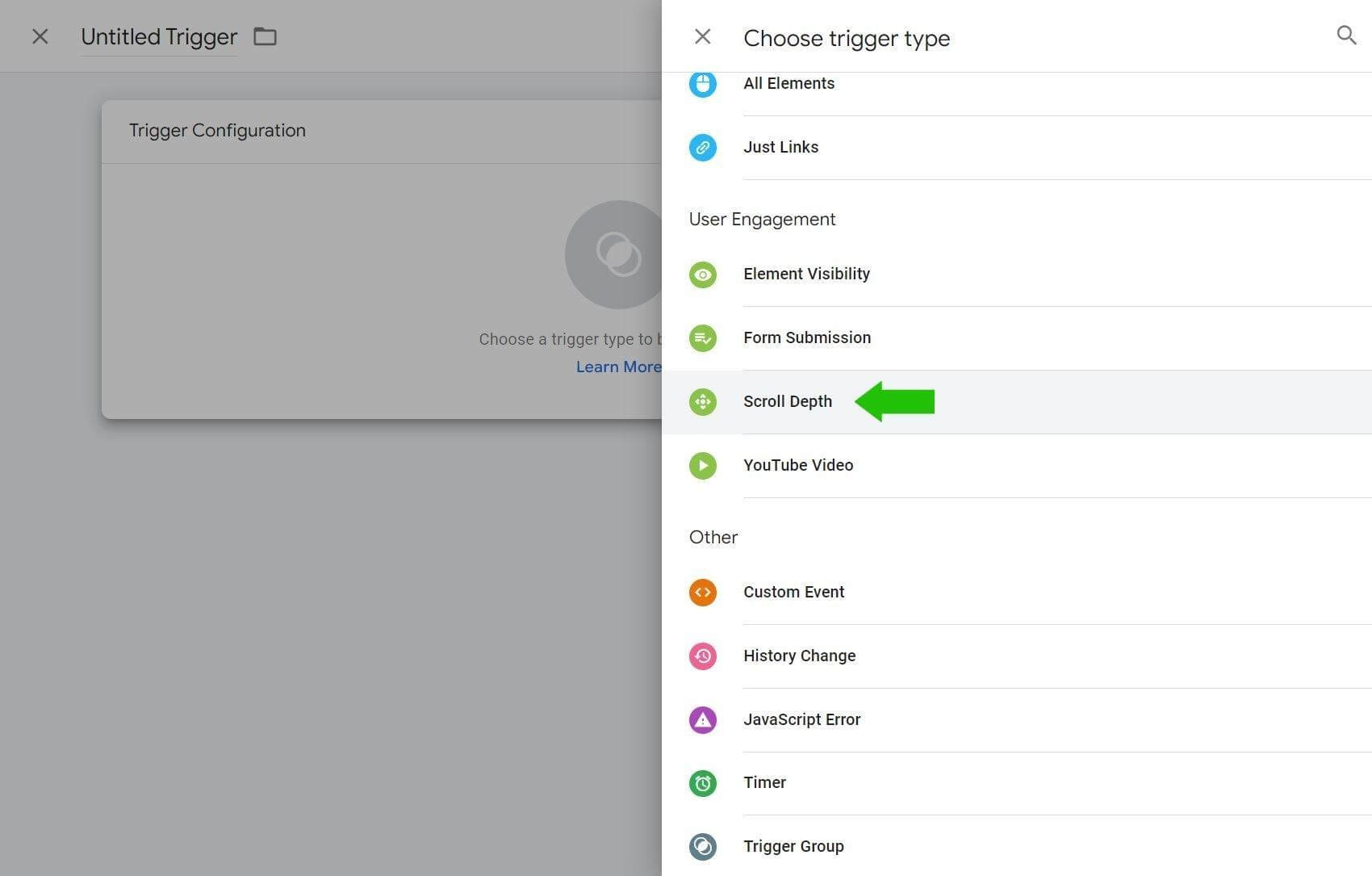
Open Google Tag Manger and navigate to the Triggers section, then click New. In the User Engagement section, select Scroll Depth.
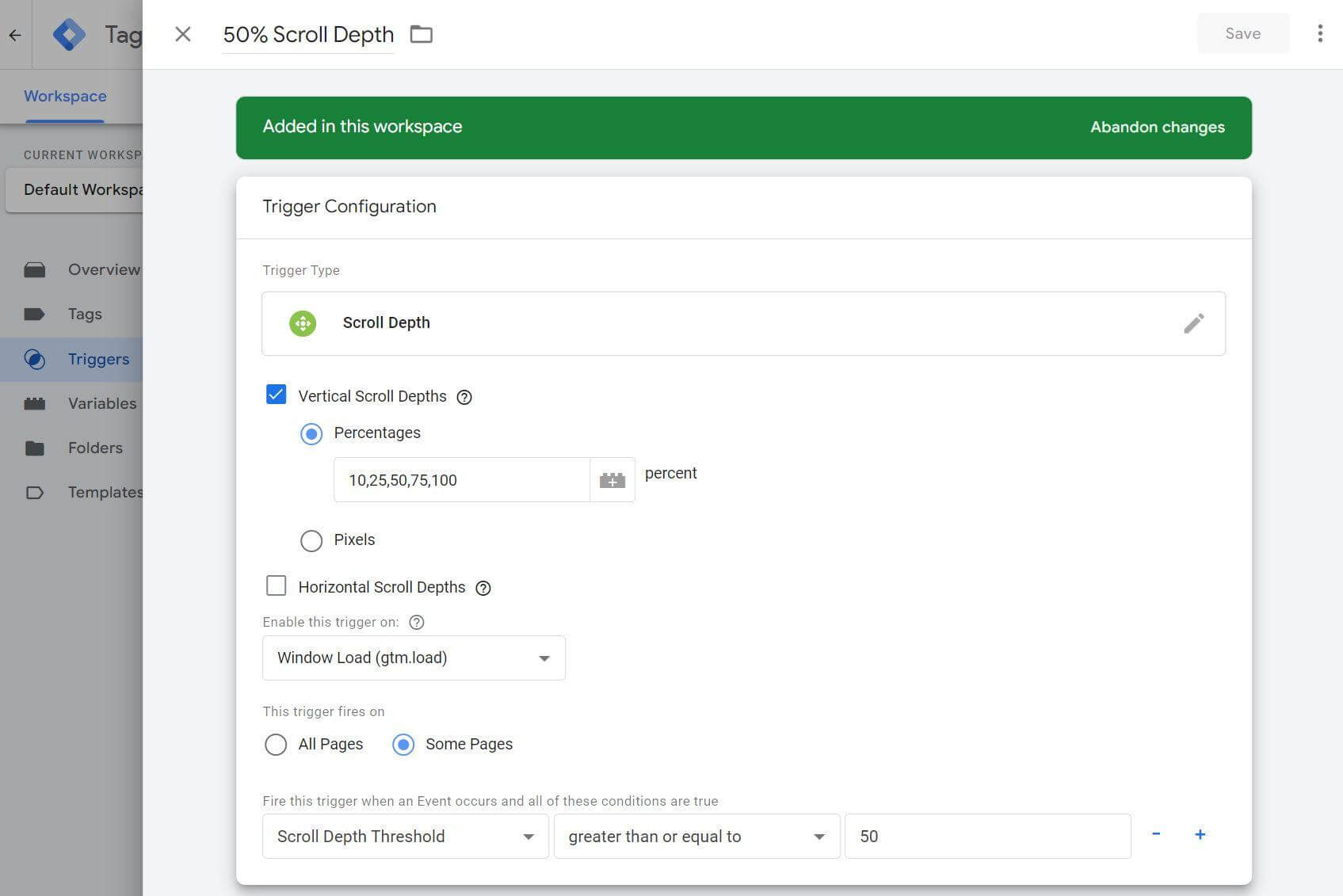
Set the Vertical Scroll Depths field to the following percentages: 10, 25, 50, 75, 100.
Next, change the ‘This trigger fires on’ selection to Some Pages.
In the trigger conditions, set the first field to: Choose Built-In variable, then Scroll Depth Threshold. Set the Contains field to: greater than or equal to. Finally, set the third field to: 50.
Name the trigger 50% Scroll Depth, and click Save. This will return you to the Triggers overview page.
#2: Create a Timer Trigger in Google Tag Manager
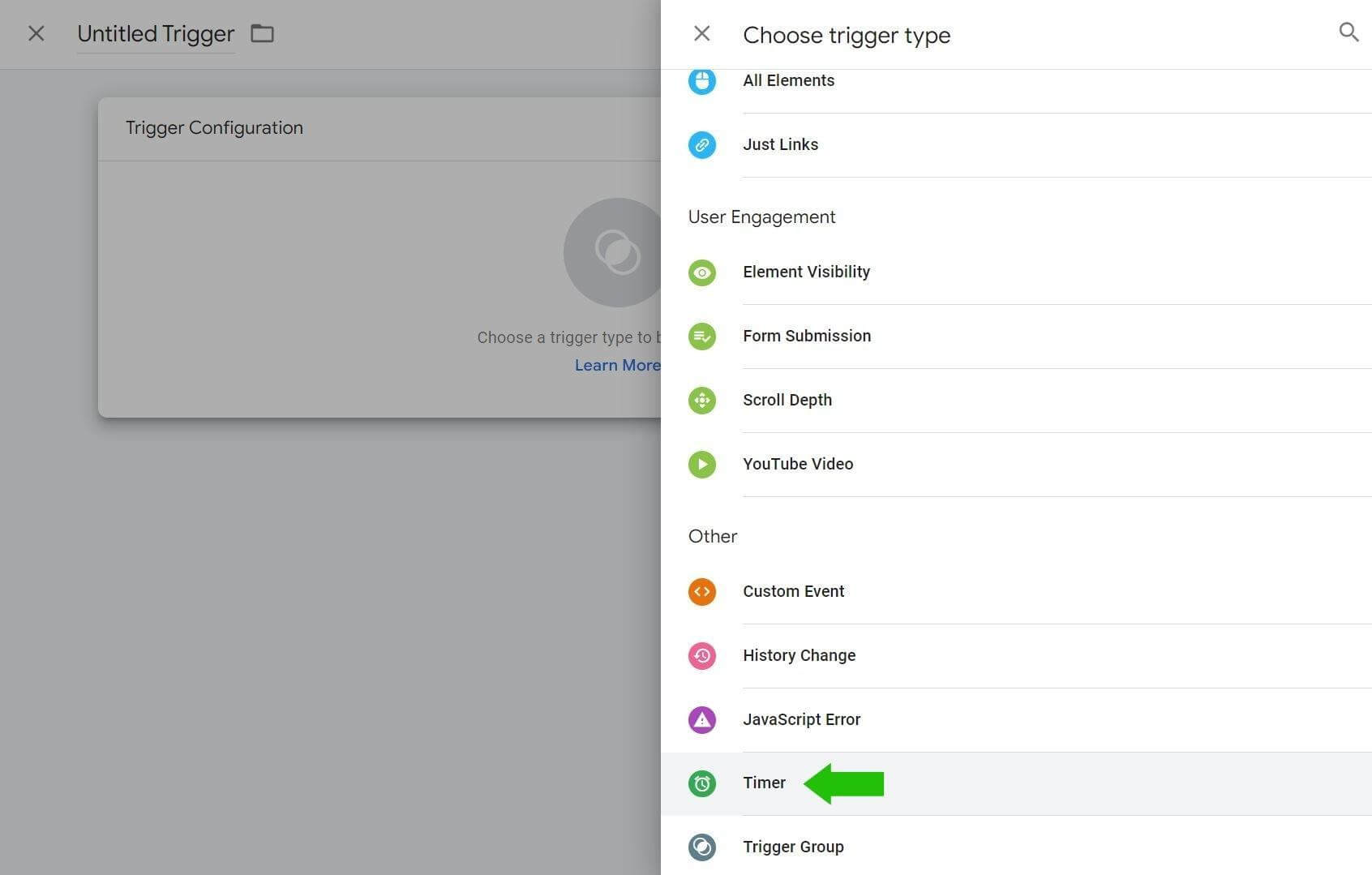
Now you’re ready to create your Timer Trigger. Once again, click New to create a new trigger. In the Other section, select Timer.
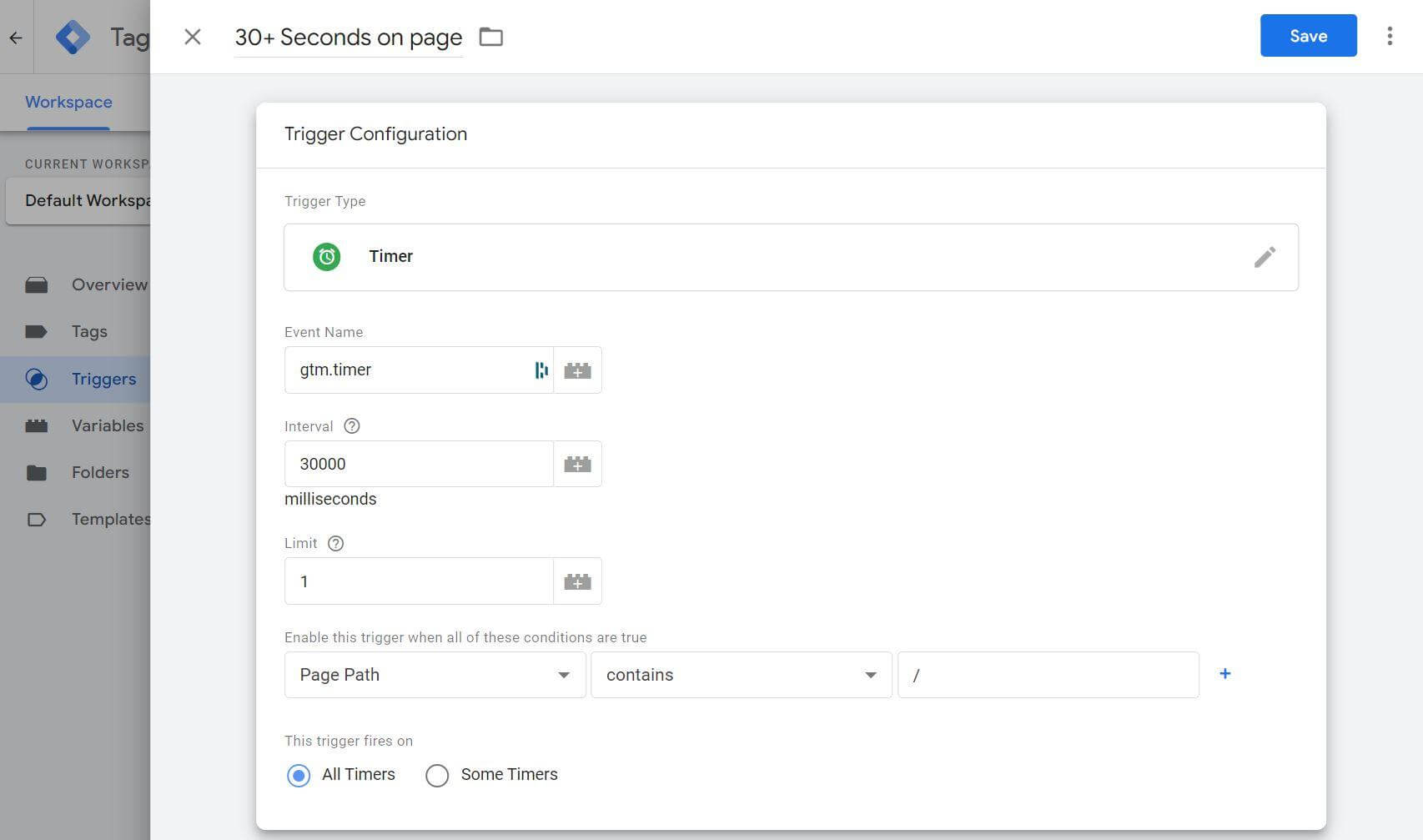
Set the interval timer to the ideal length based on your own website data. In this example, you are creating a trigger to identify people who spend at least 30 seconds on a page, so you’ll set the Interval to 30000 milliseconds.
Set the Limit to 1; this means event will fire a maximum of 1 time.
In the trigger conditions, set the first field to: Page Path. Set the second field to: Contains. Set the third field to: /.
Finally, set the trigger to fire on: All Timers.
Name the trigger 30+ Seconds on Page, and click Save. You will return you to the Triggers overview page.
#3: Create a Trigger Group
Now that you’ve created two triggers that identify the engagement you’re looking for, you’re ready to combine them into a single trigger.
Click New to create a new trigger. In the Other section, select Trigger Group.
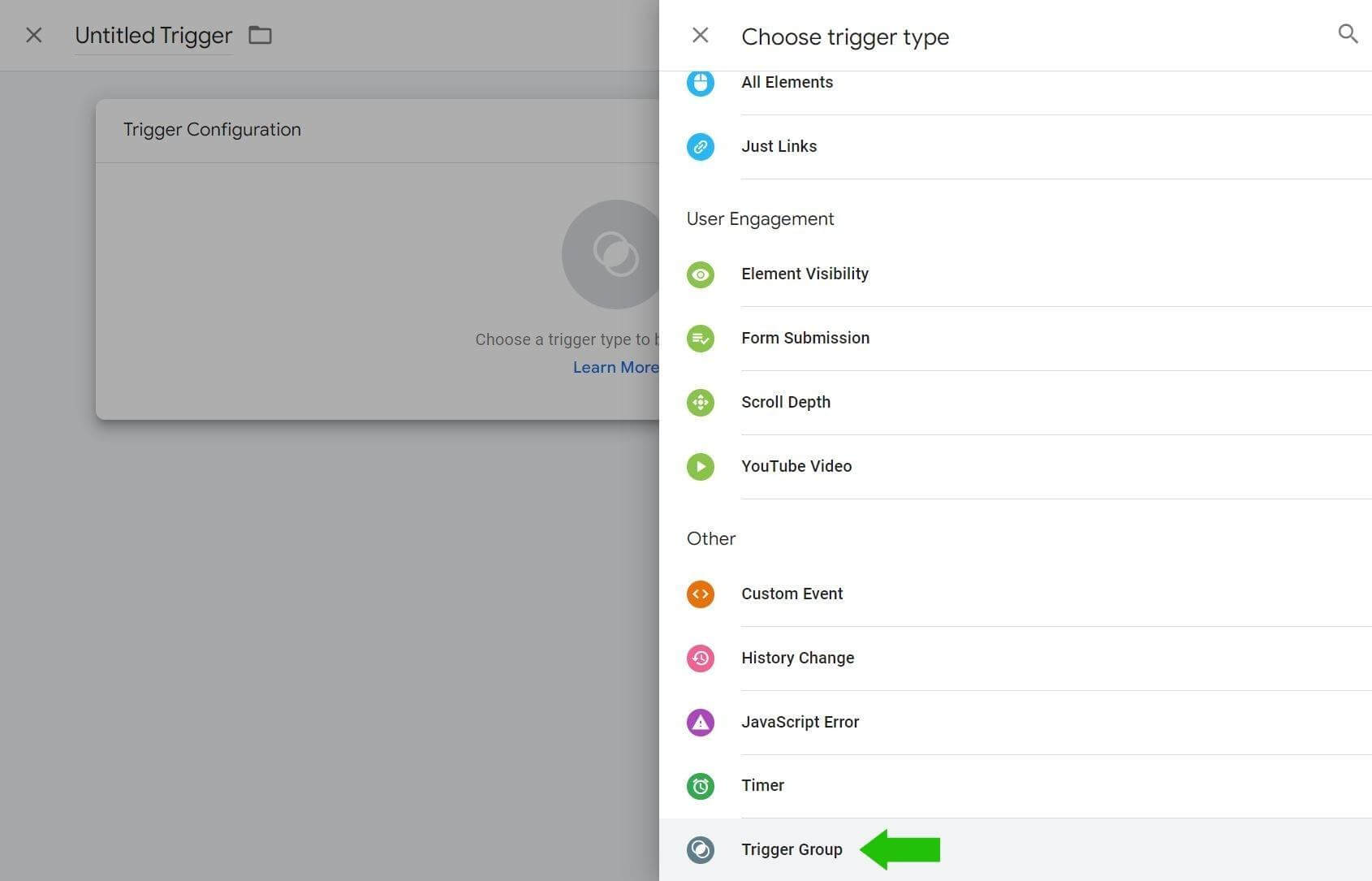
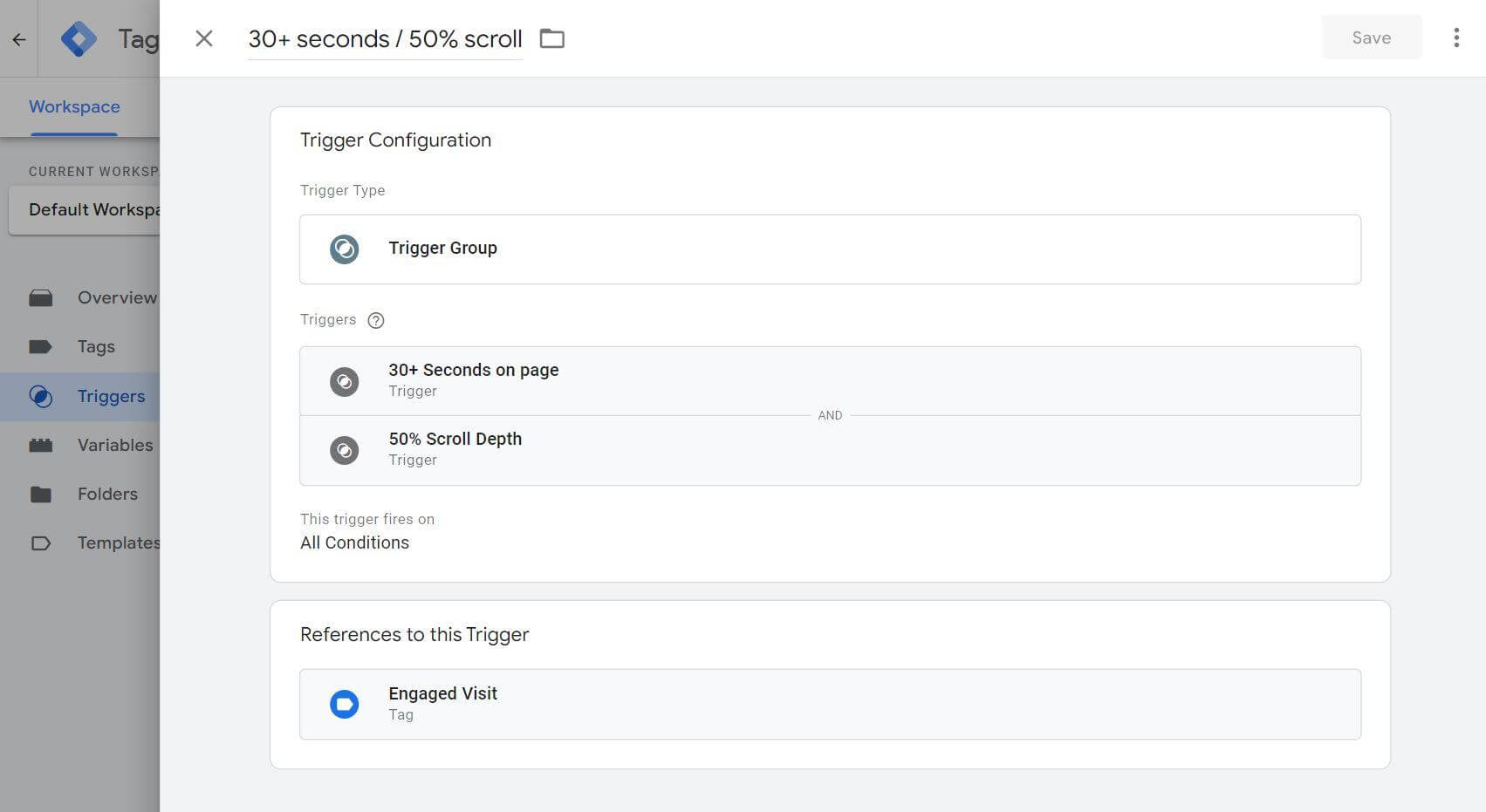
Click the Choose a Trigger box and select the 30+ Seconds on Page trigger, then click the blue + button and select the 50% Scroll Depth trigger.
Set the trigger conditions to: All Conditions.
Name the trigger group 30+ Seconds / 50% Scroll, and click Save.
#4: Install the Meta Pixel via Google Tag Manager
Before you send this custom tracking event to Meta, you need to install the Meta pixel code to your website using Google Tag Manager.
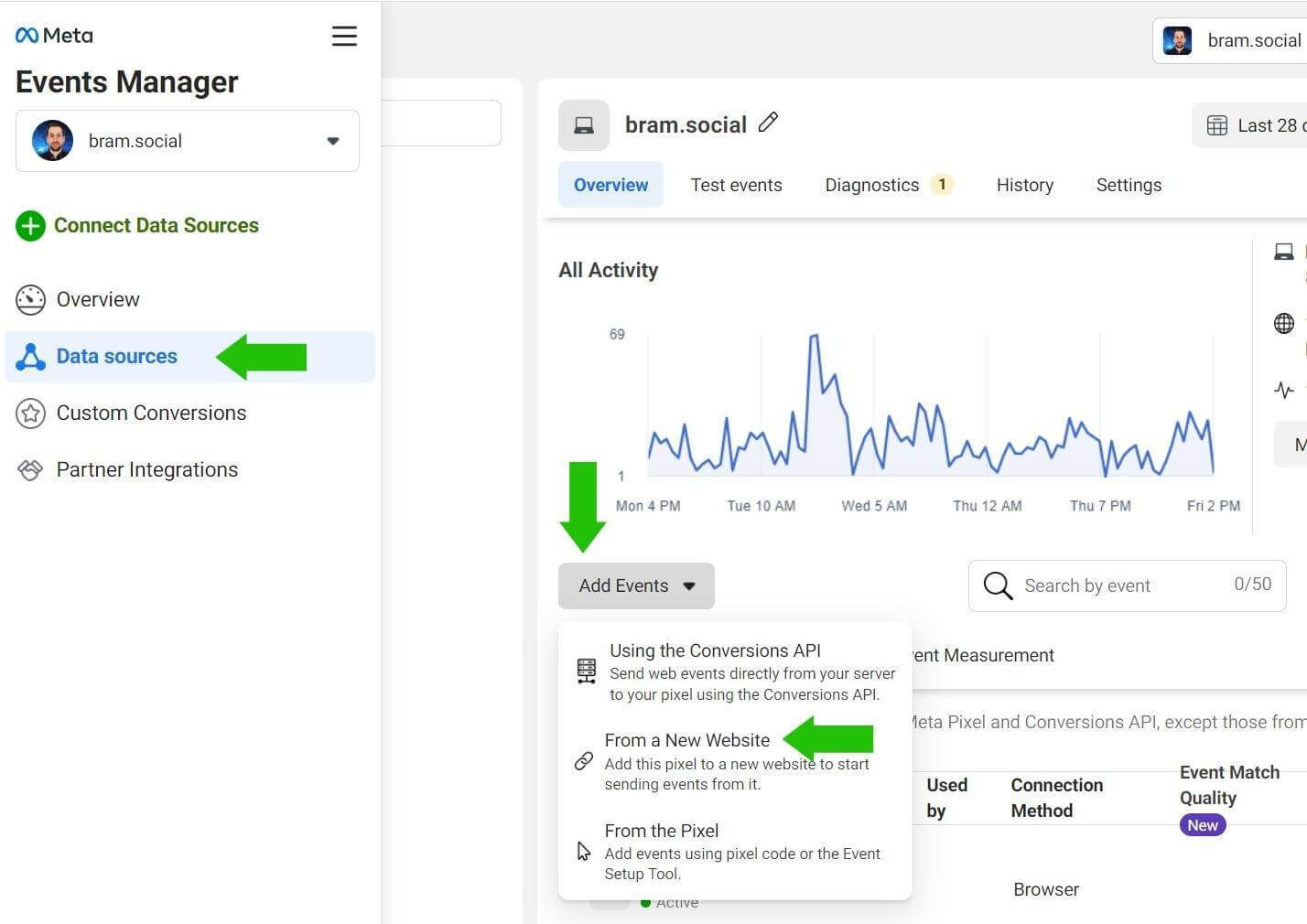
This setup is quick and easy. In a new browser tab, open the Events Manager in Meta Business Manager. Click Add Events and select From a New Website.
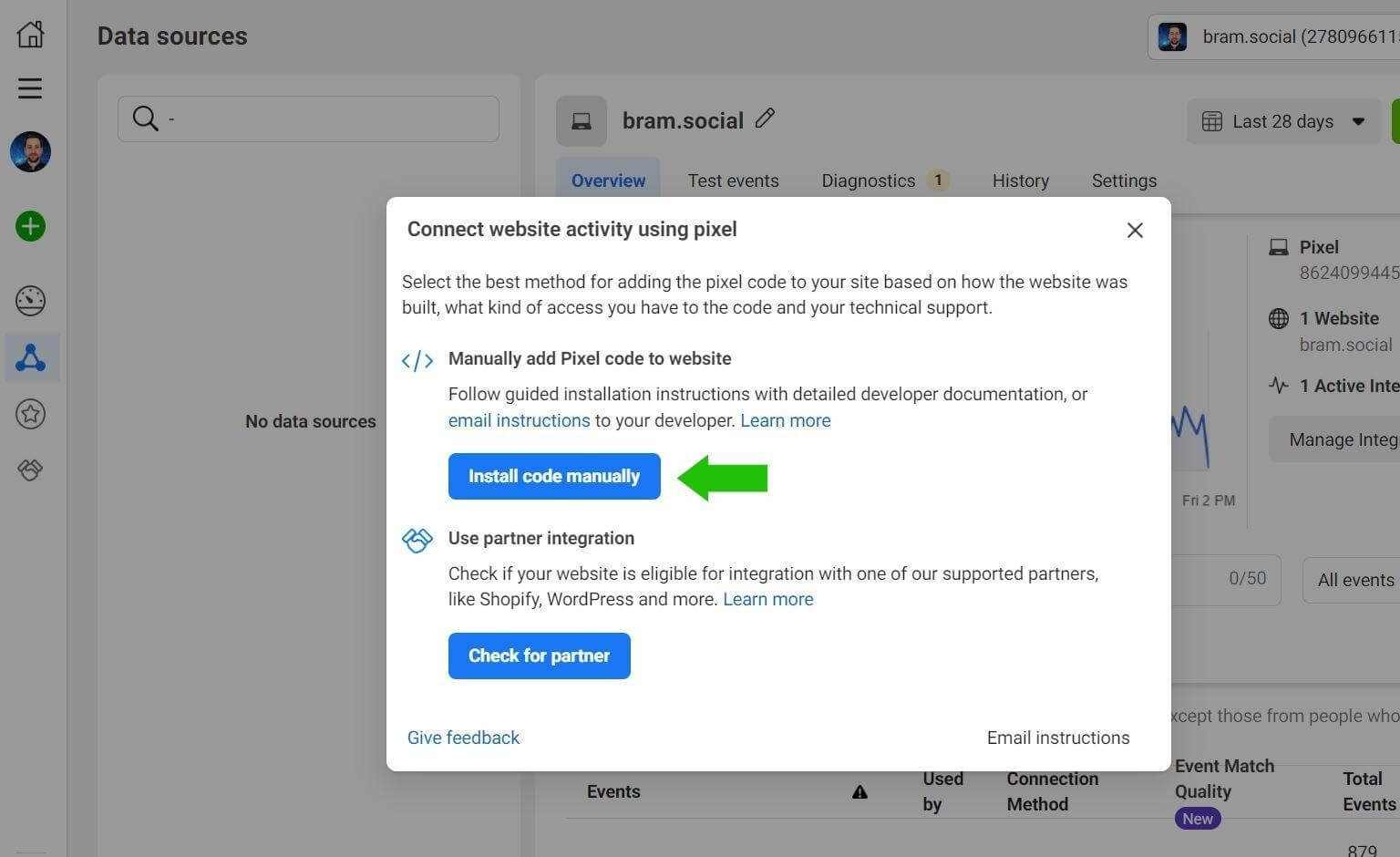
In the pop-up, click on the Install Code Manually button.
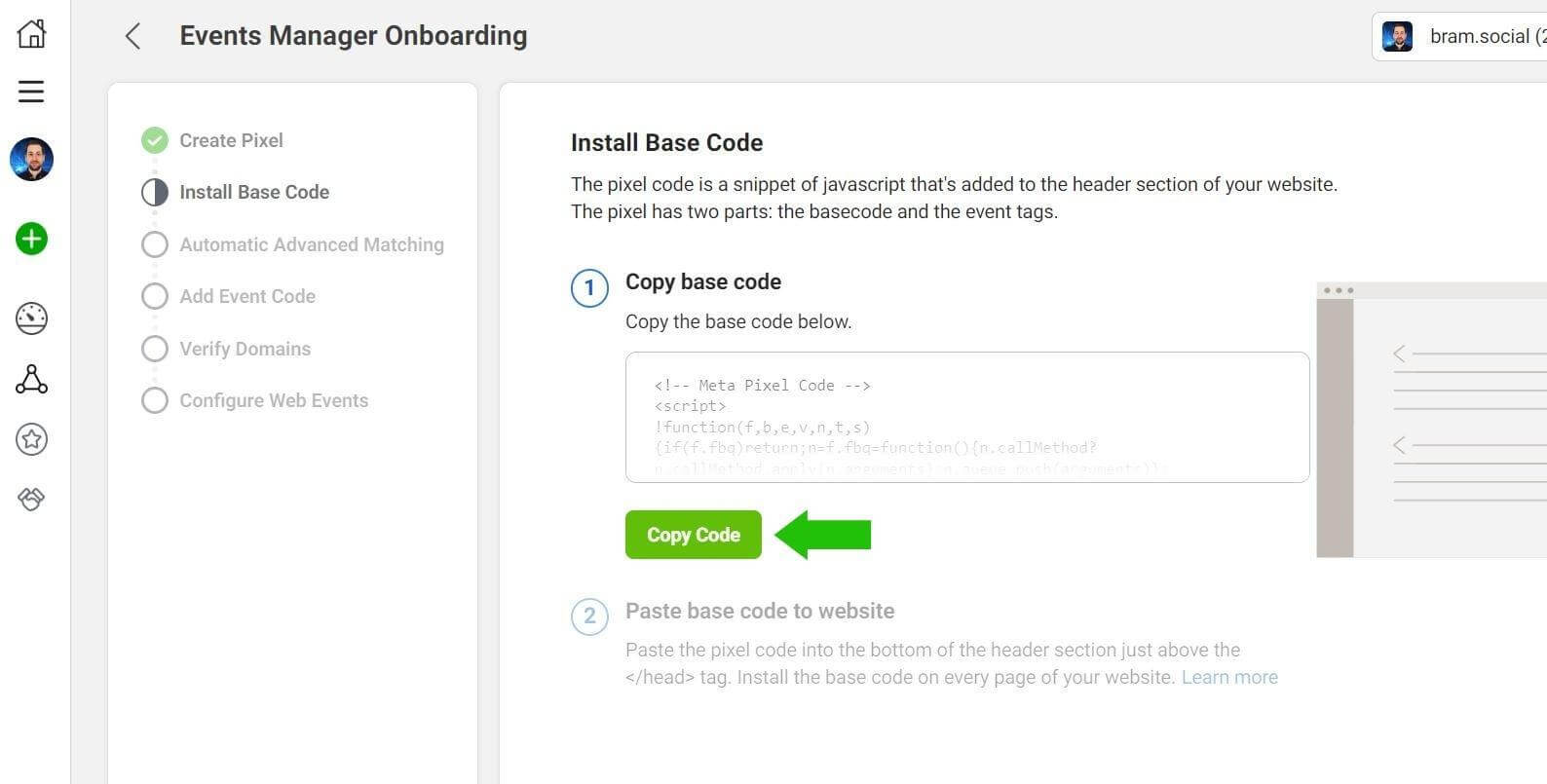
In the next window, click on the Copy Code button.
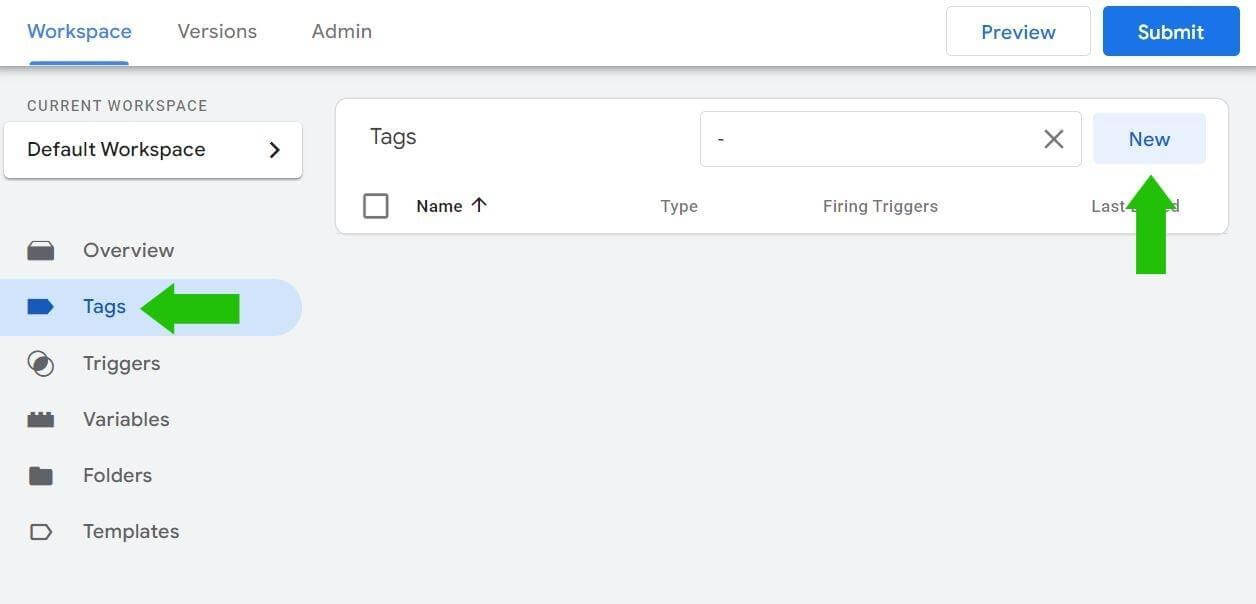
Return to Google Tag Manager and click on Tags, then click New.
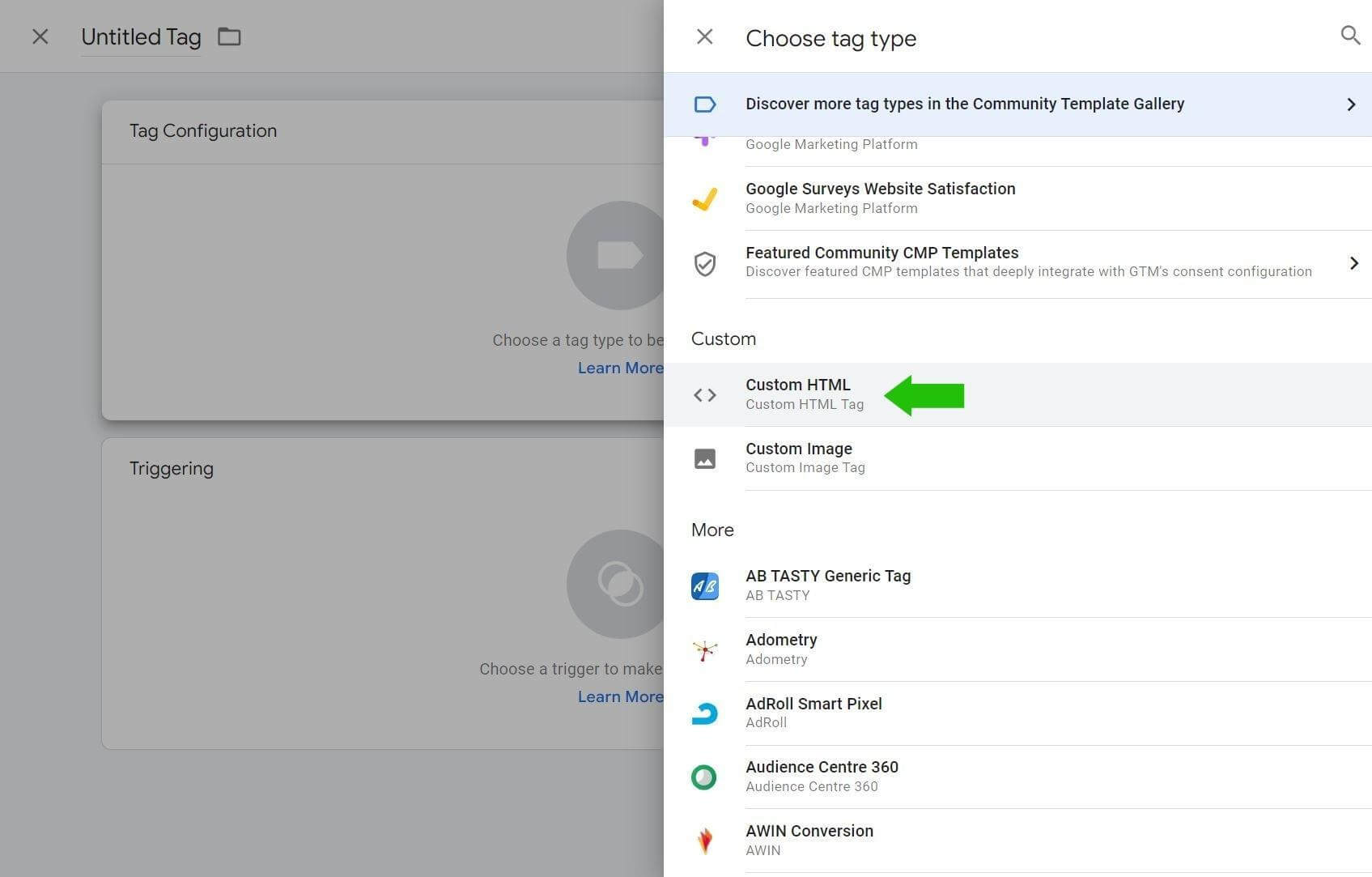
Click on the Tag Configuration box and select the Custom HTML option.
Click into the empty HTML box and paste in the Meta pixel code.




